

The short answer
What does the Xournal++ text tool do?
The Xournal++ text tool creates a typed text object at the point where you click on the page. It is different from the Pen tool: a pen stroke is a path, while a text object stores characters that can be edited later. You can place a short label beside handwriting, type an answer over a PDF form, or add a heading to a blank notebook page without flattening the rest of the journal.
The object stays inside the editable .xopp journal. That means you can reopen the notebook, click the text again, change the words, and export a fresh PDF when the page is ready to share. Treat the PDF as the delivery copy and the .xopp file as the source. This distinction matters when a mistake is found after printing or when a teacher needs to reuse a worksheet.
Quick reference
Text object controls at a glance
| Task | Tool or control | What to check |
|---|---|---|
| Create text | Text tool, then click the page | Click at the intended baseline before typing. |
| Edit words | Text tool, then click an existing object | Confirm the cursor appears inside the object. |
| Change appearance | Font and color controls in the toolbar | Choose a readable size and contrast for export. |
| Move or resize | Select Object tool | Select the object before dragging its handles. |
| Fill a PDF form | Text tool over the form field | Use a separate text object for each field. |
| Share the result | File → Export as PDF | Review the exported page, then keep the .xopp source. |
Step by step
Add and edit text in Xournal++
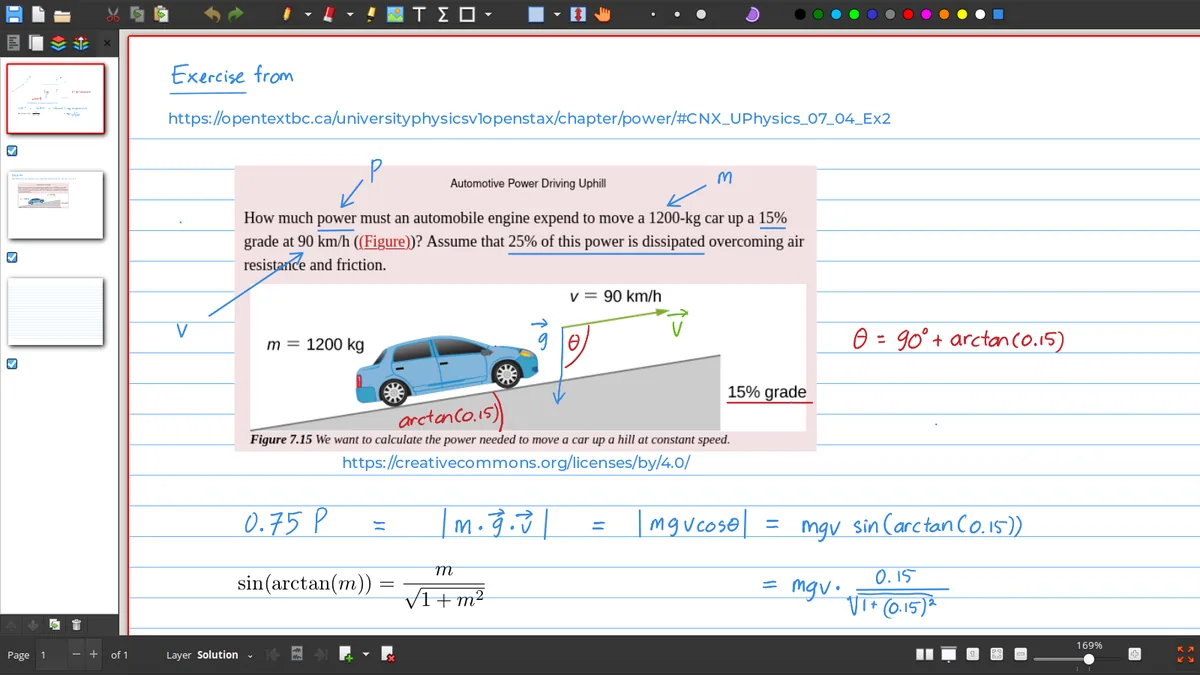
Use a small disposable page for the first test. The same sequence works on a blank journal page and on a PDF loaded with File → Annotate PDF.
Select Text
Choose the Text tool in the toolbar or open Tools → Text. On builds that expose it, Ctrl+Shift+T is a quick way to select the tool.
Click the page
Click where the text should begin. Leave enough room for the line and remember that the click sets the starting position, not a fixed form field.
Type and finish
Enter the words, then click elsewhere or switch tools when the text is complete. Keep a short line first so the size and contrast are easy to judge.
Edit an object
Select Text again and click inside an existing text object. Correct the wording, then click away to commit the edit.
Save the source
Save the .xopp journal before exporting. Use a new revision name when the page is important or the PDF background came from another person.
Formatting
Change font, size and color without losing readability
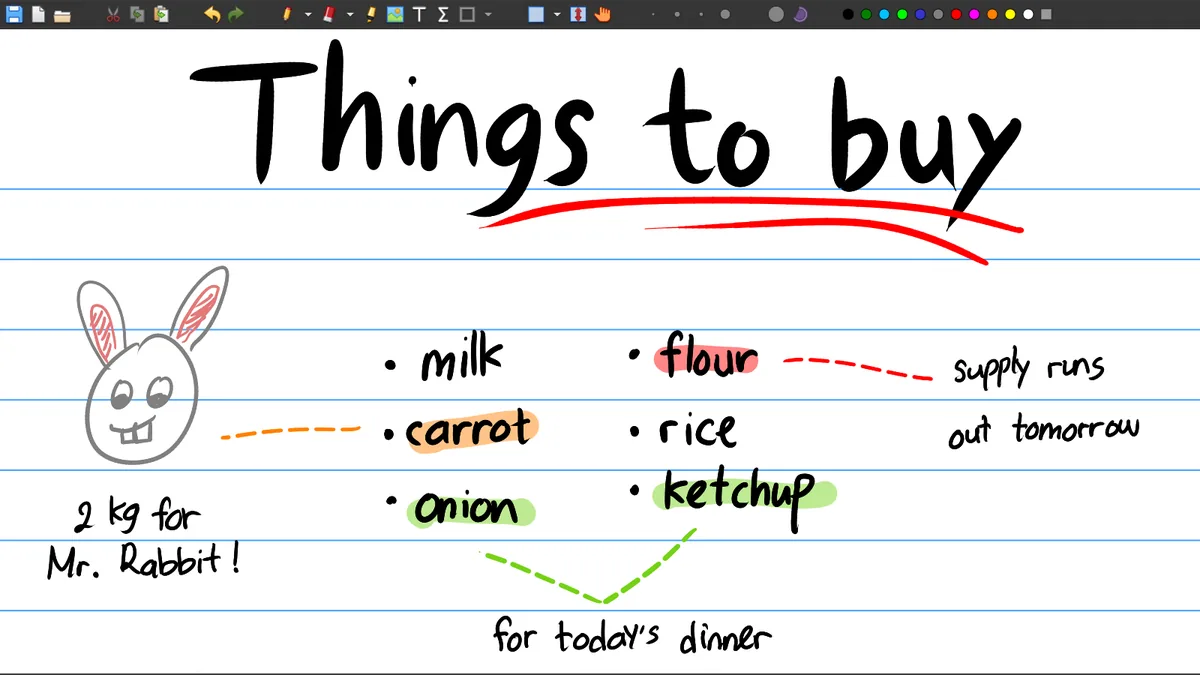
Text formatting is part of the object workflow, not a replacement for page layout. Before writing a long paragraph, choose a font and size that still look clear at the PDF zoom or print size your audience will use. A large title may help a worksheet, while a compact label can keep a diagram readable. If the toolbar shows the current pen color, confirm that you are changing the text color rather than the next stroke color.
Contrast is especially important on dark pages, scanned documents and colored PDF backgrounds. Test one sentence in the selected color, zoom out, and check it at the size of the final export. When a text object looks correct on screen but disappears in print, change the color or weight before adding more objects. Keep the editable notebook so you can adjust every label later instead of repairing a flattened PDF.
Selection and layout
Move, resize and align a text object
Use the Select Object tool when the words are correct but the placement is wrong. Click the text object to select it, then drag it to a clearer position. Selection tools can also resize or scale objects, depending on the current selection mode. If the page is crowded, move the text before drawing more marks so the object does not sit on top of a highlighter stroke or a signature.
A text object is not automatically a paragraph box. Long lines may extend farther than expected, and a PDF form may have a narrow field. Break a sentence into short objects when that gives you predictable placement, or test the line length on a copy of the page. For aligned labels, use the same font, size and starting edge, then compare the exported PDF rather than relying only on the canvas view. Layers can help separate instructions, answers and background marks in a reusable notebook.
PDF workflow
Use typed text on forms, slides and worksheets
For a PDF form, open the document with File → Annotate PDF, select Text and click inside the first field. Type a short value, then repeat with a separate object for the next field. This approach works well for forms that are visually static or do not expose interactive PDF fields. It also lets you add a signature label, date or explanation beside a scanned worksheet without editing the original PDF source.
For lecture slides, keep labels near the mark they explain and avoid covering the slide title or page number. For a worksheet, use a consistent text color for answers and another layer for personal notes if the notebook will be reused. Export one page first, inspect it in a PDF viewer and confirm that text is not clipped. Then export the full journal and keep the .xopp file alongside the PDF.
Troubleshooting
Why will the Xournal++ text tool not type?
Start by checking focus. If a search box, menu, text edit or sidebar still owns the keyboard, a key press may go somewhere other than the canvas. Press Escape when appropriate, click a blank part of the page and select Text again. If the cursor still does not appear, open Edit → Preferences → Input System and check whether the detected device class is interfering with text input. The official beginner guide specifically points to the Input System when a user cannot type characters in the Text Tool.
Test with a new blank page and a physical mouse. This separates a document-specific problem from a stylus driver or touch setting. If text appears but is hard to select, switch to Select Object and click the edge of the object, then zoom in. Save a copy before changing several preferences, and change one setting at a time so you know which action restored the text workflow.
Reliable text workflow
A repeatable Xournal++ text tool checklist
Start on a small test page. Select Text, click once, type a short label and switch to Select Object to confirm that the new object can be selected. Edit it, change its font or color and move it away from a pen stroke. This proves that the canvas, keyboard focus, formatting controls and selection mode work before a long PDF form is edited.
Keep text and handwriting as separate objects when the page may change. A typed heading can be corrected without redrawing a diagram, and a label can be moved after a PDF background is replaced. For many answers, use layers or a consistent color so the typed response is distinct from the worksheet. Export one representative page and inspect it in another PDF viewer.
The Xournal++ text tool suits precise labels, fields, captions and corrections beside visual notes. It is not a word processor with automatic paragraph layout. For a long essay, use a document editor; for page-based annotations, text objects keep the journal editable and make the PDF easier to review.
When text is missing, separate the causes: input device and focus, selected Xournal++ tool, and page or PDF layout. A blank-page test reveals which layer is failing. Once it works, reopen the real notebook, save a revision and repeat the export check instead of changing unrelated preferences.
Frequently asked questions
Xournal++ text tool FAQ
How do I add text in Xournal++?
Select the Text tool, click where the words should begin and type. Click away or switch tools when the text object is complete, then save the .xopp journal.
How do I edit text in Xournal++?
Choose the Text tool again and click inside an existing text object. Edit the characters, then click away to commit the change.
Can I move text in Xournal++?
Yes. Use the Select Object tool, click the text object and drag it to a new position. The same selection workflow can resize or scale the object when supported by the active mode.
What is the Xournal++ text shortcut?
Many builds expose Ctrl+Shift+T for Tools → Text, but menu accelerators can vary by platform and version. Check the Tools menu in your installed build.
Can I add text to a PDF with Xournal++?
Yes. Open the PDF with File → Annotate PDF, select Text, click a field or page area and type. Export a test page to PDF before exporting the full notebook.
Why does my text not appear when I type?
Check keyboard focus, select Text again and test on a blank page. If the issue remains, inspect Edit → Preferences → Input System and the detected device class before changing other settings.