

Pick the right file
Installer or portable ZIP?
The Xournal++ Windows installer is the easiest path for a regular personal computer. It places the application in a standard location and gives Windows a familiar installed-app workflow. Use this file when you want shortcuts, Start menu access and a setup that other users can understand without extra instructions.
The portable ZIP is useful when you want to keep the application beside a study folder, test Xournal++ without changing a shared computer, or carry a known build between compatible Windows machines. Unpack it into a writable folder rather than a protected system directory. A portable build does not automatically make your notebooks portable: keep the background PDFs and .xopp files together.
Windows ARM64 users should choose the ARM64 build only when the device reports an ARM64 processor. The AMD64 installer is not a universal choice for every Windows device, and the portable archive has the same architecture distinction.
Windows choice
Xournal++ Windows download options
| Option | Use it when | What to remember |
|---|---|---|
| AMD64 setup EXE | Most Intel and AMD Windows PCs | Normal installation and shortcuts |
| AMD64 portable ZIP | Folder-based or removable setup | Unpack to a writable location |
| ARM64 setup EXE | Windows on ARM devices | Confirm the device architecture |
| ARM64 portable ZIP | Portable ARM Windows workflow | Use only on compatible ARM hardware |
Windows setup
Install Xournal++ on Windows
Check Windows
Confirm your Windows version and CPU architecture in Settings before choosing the file.
Download the build
Use the installer for a regular setup or the portable ZIP for a folder-based workflow.
Open a notebook
Launch Xournal++, import a PDF or choose a blank page template, then test pen and mouse input.
Save two files
Keep the editable .xopp notebook and the background PDF in predictable folders.
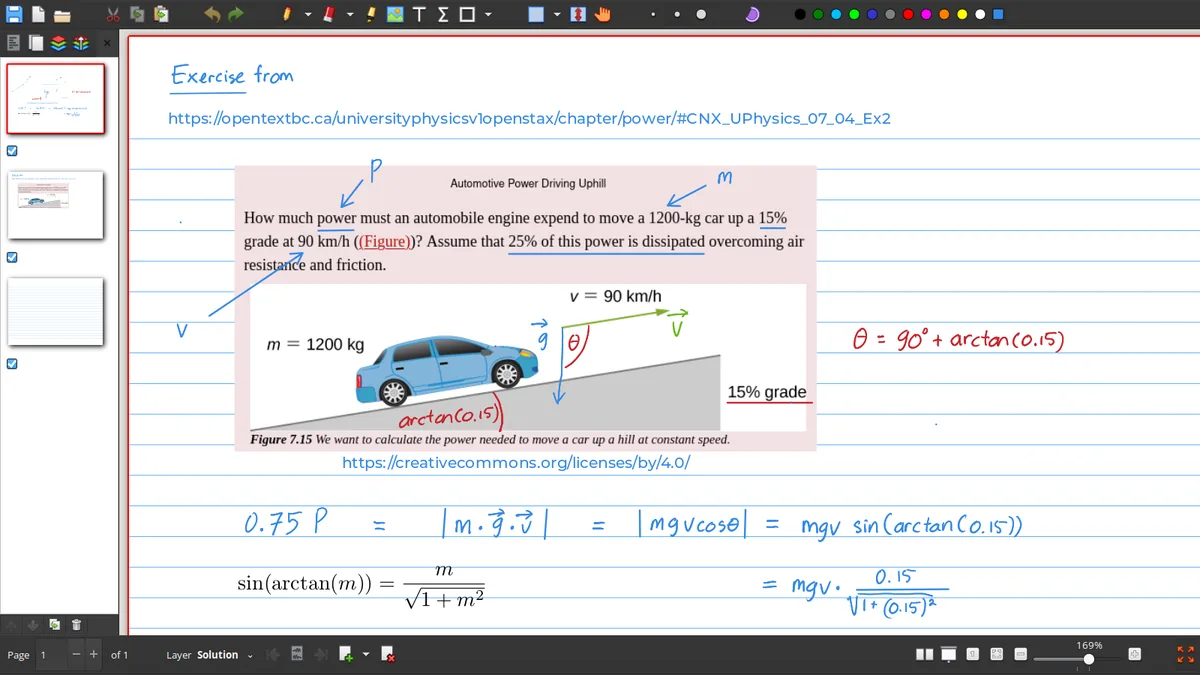
After installation
Common Windows follow-up questions
If a mouse draws when you expected a pointer, review the stylus and input settings before reinstalling. If a pen feels rough, test smoothing and pressure behavior with a blank page. If a PDF opens but its background later disappears, read the .xopp guide and learn how the notebook references its source PDF.
For a classroom or office computer, the portable ZIP can be easier to keep separate from a system installation, but it still needs a trustworthy source and a writable location. Do not download repacked versions from unknown mirrors simply because the file name looks shorter.
Windows file handling
Keep the installation, notebook and PDF separate
The application folder and the notebook folder solve different problems. Install Xournal++ in the normal location or unpack the portable build into a folder you control, then keep study projects in a separate Documents or synced folder. This makes it easier to replace an application build without accidentally moving your notes. It also makes Windows backup tools and antivirus exclusions easier to reason about.
When you open a PDF and save a journal, use filenames that show the relationship between the source and the editable file. For example, keep calculus-week-04.pdf beside calculus-week-04.xopp, then export calculus-week-04-annotated.pdf. If Windows asks which application should open a file, confirm the extension before changing the default association. A .xopp journal should open in Xournal++, while a PDF can remain associated with your normal reader.
Windows checks
Verify the first launch before a long session
After installation, open a short PDF and make four marks: a pen stroke, a highlighter stroke, a text object and a simple line. Save the journal, close Xournal++ and reopen it. This small test confirms that the file association, writable folder, input device and export path work together. If Windows Defender or SmartScreen shows a warning, compare the filename and source with the official release page before deciding what to do.
Windows download decision
Choose the right Xournal++ Windows download
The Xournal++ Windows download has two practical decisions: architecture and installation style. AMD64 is the normal choice for Intel and AMD desktop or laptop processors. ARM64 is intended for Windows devices with ARM hardware and should not be selected only because the computer is lightweight or portable. The installer is the easiest option when Xournal++ should appear in the normal Windows workflow. The portable ZIP is useful for a controlled folder, a classroom USB drive or a machine where a traditional installation is not desirable.
After the Xournal++ Windows download is installed, open a small PDF and test pen, text, shape and export actions before moving an important notebook. Keep the .xopp file and any separate PDF background in a writable folder that Windows can access. If SmartScreen, antivirus or file permissions interrupt the first launch, compare the file name and source with the official release before changing security settings. This Xournal++ Windows download guide is about choosing a compatible official build and creating a reliable first test, not about promising that every tablet driver behaves identically.
Frequently asked questions
Xournal++ Frequently asked questions
Does Xournal++ work on Windows 11?
The current Windows build is intended for modern Windows desktop systems, including Windows 11. Select the installer that matches the computer architecture.
Is there a portable Xournal++ version for Windows?
The official release includes portable ZIP files for supported Windows architectures. Unpack the archive into a writable folder and keep your notebook and background files organized.
Which Windows download should I use?
Use the AMD64 setup EXE for most Intel and AMD PCs. Use an ARM64 build only when Windows reports ARM64 hardware.
Why is Xournal++ slow or inaccurate with my pen?
Check the stylus page for pressure, smoothing, input-device and mouse troubleshooting before assuming the installer is broken.