
Start here
How PDF annotation works in Xournal++
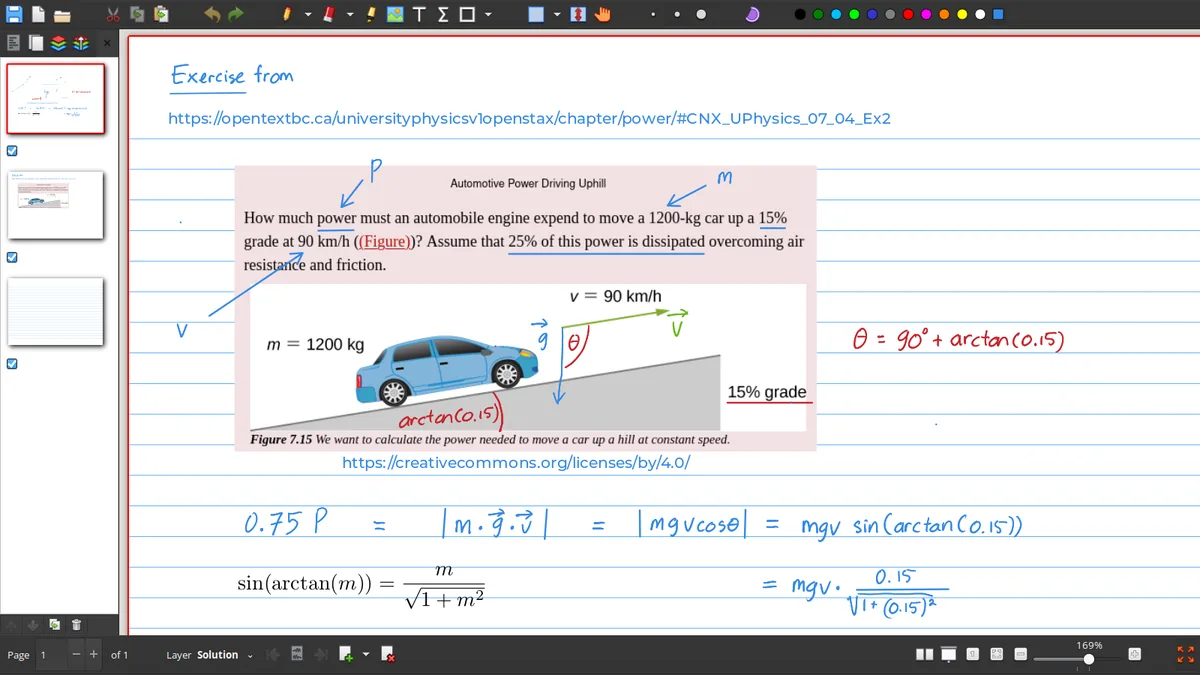
Open a PDF in Xournal++ when you want to write, highlight or draw over the document without changing the original text layer directly. The PDF becomes the page background and your handwriting or objects sit above it. This is useful for lecture slides, worksheets, reading notes, forms and problem sets because the original page remains visible while your notes stay editable in the notebook.
When you save, Xournal++ keeps the notebook structure in a .xopp file. When you export, the application creates a PDF that is easier to share or print. Keep both when the work may need revision: the exported PDF is a delivery format, while the .xopp file is the editable working document.
Basic workflow
Annotate a PDF step by step
Open the PDF
Start Xournal++ and open the PDF you want to mark up. Use a copy when the source is important.
Choose a tool
Select the pen, highlighter, text, line or shape tool that matches the mark you need.
Write and review
Add notes page by page, zoom in for small details and use layers when a document needs separation.
Save and export
Save the .xopp notebook first, then export a PDF for printing or sharing.
Important file behavior
PDF background vs attached PDF
| Workflow | Advantage | Risk or limitation |
|---|---|---|
| Reference background | Lightweight and familiar | The notebook may depend on the original PDF path |
| Attached background | Easier to move as one notebook | File size and compatibility may change |
| Exported PDF | Simple to share or print | Not the same as an editable .xopp source |
| .xopp backup | Keeps handwriting and structure | Needs its PDF background when the workflow references one |
Print and export
Can Xournal++ print only part of a PDF?
The exact print result depends on the page range and the operating system print dialog. Start by deciding whether you need selected pages, a page range or a cropped area. Xournal++ is primarily a notebook and annotation application, so a precise crop may be easier after export in a dedicated PDF tool. Keep the original .xopp file if the printed result needs another edit.
For a clean export, review the page orientation, margins, paper size and scale before printing. If annotations look clipped, check the export preview and page settings rather than drawing closer to the edge as a permanent workaround.
Layers and selection
Keep annotations easy to revise
Layers are useful when a PDF needs more than one kind of mark. You can separate a highlighter pass from handwriting, diagrams or answer keys so that one layer can be hidden or edited without disturbing the background. A selection tool is also helpful for moving an image, text object or shape after the page has become crowded. Plan the layer names before making hundreds of marks if the notebook will be reused as a teaching or study template.
When you need only a portion of a document, first decide whether the requirement is a page range or a visual crop. A page range can usually be handled by the print dialog or export selection. A crop changes the visible geometry and may be better done in a dedicated PDF editor after Xournal++ has produced the annotated document. Keep the full notebook as the source so the cropped handout does not become the only copy.
Forms and worksheets
Use the right layer for answers and review marks
For a form or worksheet, keep your handwriting, typed answers and review marks on separate layers when you expect to revise the document. This makes it easier to hide an answer key, remove a temporary highlight or prepare a clean copy for another person. If a PDF already contains form fields, decide whether to fill the fields directly or add an annotation layer; mixing both without a naming plan can make the exported result confusing.
Before sending a PDF, open the exported file in a second viewer and check page count, text visibility, annotation placement and print margins. A PDF that looks correct in Xournal++ may still need a quick external check because recipients use different viewers and printer settings. Keep the editable notebook beside the final PDF for any corrections.
Print a selected part
Separate page selection from visual cropping
If the goal is to print only pages 3–5, use the page-range controls in the print or export workflow and preserve the original page geometry. If the goal is to remove a margin or show only a small region, export first and crop a copy in a PDF editor. Keeping these tasks separate prevents a visual crop from changing the source notebook and makes it clear which file contains the complete annotation history.
Annotation checklist
A repeatable Xournal++ PDF annotation workflow
A good Xournal++ PDF annotation workflow separates the source document, editable marks and final delivery copy. Open the PDF as a notebook background, choose a pen, highlighter, text or shape tool, and save the notebook before making a large set of changes. Use layers when handwriting, highlights and diagrams need to be edited independently. If a page feels crowded, zoom out and move an object with the selection tool instead of redrawing it near the margin.
The most useful Xournal++ PDF annotation habit is to keep the .xopp source beside the exported PDF. The source remains the place for corrections, layer changes and future pages; the exported PDF is the copy for a teacher, colleague, printer or archive. When the task says print only part of a PDF, decide whether it means a page range or a visual crop. Use print or export controls for a range, and use a dedicated PDF editor for a crop when necessary. This keeps Xournal++ PDF annotation reversible and prevents a cropped handout from replacing the complete notebook.
Frequently asked questions
Xournal++ Frequently asked questions
Can I write on a PDF in Xournal++?
Yes. Open the PDF as a notebook background and add handwriting, highlights, text, lines and shapes above the page.
How do I export Xournal++ notes to PDF?
Save the editable .xopp notebook, then use the PDF export workflow to create a shareable or printable PDF.
Can I overlay Xournal annotations on another PDF?
The result depends on the PDF page size and the notebook background. Use the same source page dimensions when possible and keep a backup before replacing a background.
Why did my PDF background disappear?
The notebook may reference the original PDF path. Restore the PDF, keep it beside the .xopp file or use an attachment workflow when appropriate.