
The short answer
How does Xournal++ audio recording work?
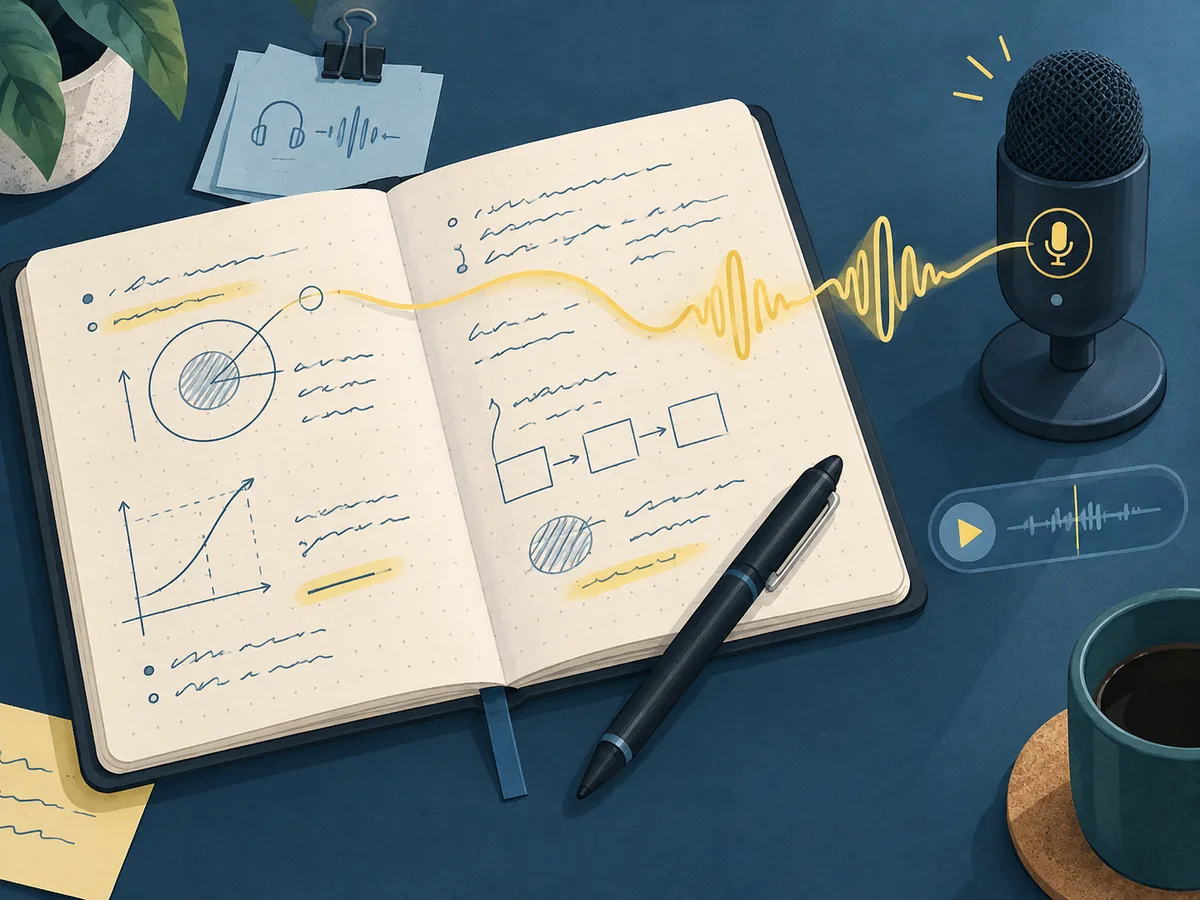
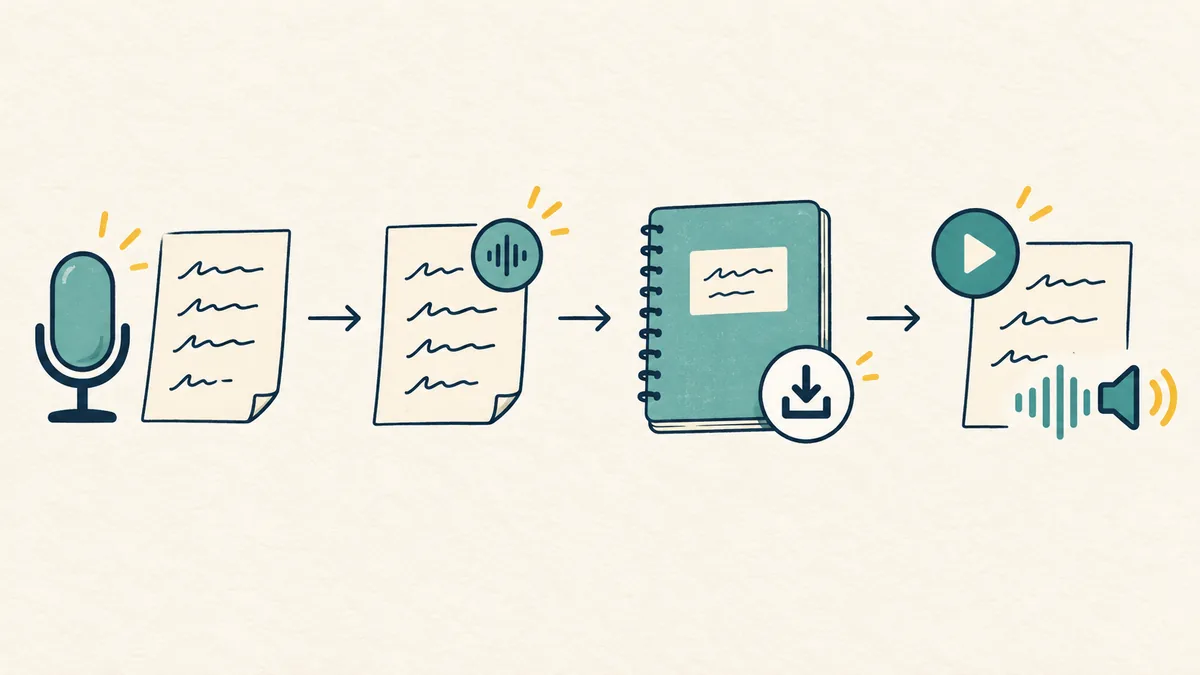
Xournal++ is a handwriting notebook with PDF annotation support, and its official guide lists an audio workflow alongside the pen, layers and page tools. You can start a recording while taking notes, then insert that recording into an object in the notebook. When you select the object later, the Play Object tool can be used to listen to the associated audio. The useful idea is proximity: a voice explanation stays connected to the diagram, paragraph or mark that needs context.
Treat the recording as part of a working notebook rather than as a generic voice memo. Write a short heading, place the object near the relevant content and stop the recording when the explanation ends. This makes a later review easier because the sound has a visual anchor. If you only need a standalone meeting recording, a dedicated recorder may be simpler; Xournal++ audio is most helpful when speech and ink belong to the same lesson, experiment or review.
The exact labels and behavior can depend on the installed build and desktop platform. The official project is available for Linux, Windows and macOS, so confirm the current toolbar and menu wording in your own version. Do not download an unofficial “audio-enabled” repackaged installer. Start from the official release path, test a disposable notebook and keep the original .xopp file before using the feature for important work.
Quick reference
Audio recording decisions in Xournal++
| Task | What to do | Why it matters |
|---|---|---|
| Prepare a note | Open a blank page or PDF and create the object that needs context | The object gives playback a visible anchor |
| Capture speech | Record while you write or sketch the explanation | Ink and voice can be reviewed together |
| Attach the clip | Insert the recording into the selected note object | The audio remains associated with the relevant content |
| Review | Select the object and use Play Object | You can listen from the place where the idea appears |
| Preserve the source | Save the editable .xopp notebook and keep backups | An exported PDF cannot carry the complete notebook workflow |
| Share carefully | Export a copy only after checking what the recipient needs | Audio, handwriting and PDF exports have different boundaries |
A safe first test
Record a short audio note in Xournal++
Use a disposable notebook and a clip of less than a minute while learning the controls. The goal is to verify the full path before you rely on it for a lecture or meeting.
Create a test object
Open a blank page or a copy of a PDF, draw a small mark or write a heading, and leave enough space to see the selected object.
Check the input
Confirm that the operating system exposes the microphone you intend to use. Speak a sentence and watch for the recording state in the Xournal++ interface.
Record the explanation
Start the audio capture, write or sketch the related idea, then stop instead of leaving a long silent tail.
Insert the recording
Attach the finished recording to the note object using the audio command shown by your build. Keep the visual mark easy to select.
Play and reopen
Select the object, use Play Object, save the notebook, close it and reopen the copy to confirm that your test survives a normal save cycle.
Object attachment
Why attach audio to a note object?
A page can contain several ideas, so an unlabelled recording quickly becomes difficult to interpret. A small heading, diagram or highlighted region gives the audio a reason to exist. For a mathematics lecture, attach a derivation explanation to the equation it explains. For a lab notebook, place the recording beside the sketch and write the sample name on the page. For a design review, connect a spoken decision to the shape or annotation under discussion.
Object attachment also encourages short clips. Record one explanation, stop, write a short label and continue with the next point. Short clips are easier to replay than a single hour-long track, and the page gives you a visual index. Keep the selection state visible while learning; if the wrong object is active, playback can feel like it disappeared even though the recording is still present elsewhere on the page.
Save and backup
How should you save audio notes?
Save after a meaningful group of recordings instead of waiting until the end of a session. Use a filename that identifies the project, date and revision, then keep the .xopp file beside any PDF background it needs. The Xournal++ project documents the .xopp format as the editable notebook, and its README warns that PDF backgrounds are not simply interchangeable with the notebook itself. A clean folder makes recovery easier when a microphone test or export goes wrong.
Make a copy before experimenting with a long notebook. Test recording and playback in the copy, then reopen it on the same desktop system. If you move the file to another computer, move the associated background and note which Xournal++ build created it. A backup is more useful when you can tell which copy contains the latest audio and which copy is only a PDF export.
Troubleshooting
Fix common Xournal++ audio problems
If the recording command is missing, first confirm that you are running Xournal++ rather than the older Xournal application or a PDF viewer. Check the installed version, open a fresh test notebook and inspect the audio-related toolbar or menu entry. A plugin or an unrelated browser extension is not a substitute for the native feature. If the control exists but is disabled, check whether the current page or object can accept an attachment and whether another dialog has focus.
If playback is silent, separate the microphone test from the speaker test. Verify the operating system's input and output devices, make a short new clip and use Play Object on the selected object. Check the volume mixer and listen for the recording in the same desktop session before moving the notebook. When the wrong clip plays, click the intended object, look for a visible selection state and test with one object on an otherwise empty page.
Real use cases
When is audio beside handwriting useful?
Students can record a short explanation while marking a slide, then replay the explanation from the diagram during revision. Instructors can keep a spoken reminder beside a worked example without filling the page with paragraphs. Researchers can capture an observation while sketching a setup, provided the notebook is stored with the same care as any other research record.
For meetings, use audio only when participants understand the recording plan. A useful page structure is one topic per object, a short written decision and a short clip that explains the context. Add a date or speaker label in the notebook so a future reader does not mistake an informal reminder for a final decision. Export a PDF only when the recipient needs the visual notes and give them a separate, approved audio copy when appropriate.
Boundaries
What Xournal++ audio recording does not promise
Audio attachment is not the same as speech-to-text transcription, automatic summaries or cloud backup. Xournal++ can keep an audio recording alongside handwritten content, but a searchable text transcript requires a separate workflow and its own privacy review. If you need transcription, export or copy only the material you are allowed to send to an external service, and keep the original notebook unchanged.
Audio workflow summary
A repeatable Xournal++ audio recording routine
A dependable Xournal++ audio recording workflow has four checkpoints: choose the correct microphone, create a visible note object, attach a short clip and verify playback after saving. That sequence is more useful than memorising a long list of menu names because it still works when a Linux, Windows or macOS build places the controls in a different toolbar. Start with a copy of the notebook, record a sentence, select the object and use Play Object before you add a full lecture or meeting.
Frequently asked questions
Xournal++ Audio Recording FAQ
Can Xournal++ record audio while I write?
Yes. The official Xournal++ guide describes recording audio while you write and inserting the recording into an object in the note. Test the complete record, save and playback path in a copy of your notebook first.
How do I play an audio recording in Xournal++?
Select the object that holds the recording and use the Play Object tool shown by your installed build. If playback is silent, check the operating system input, output and volume settings with a short test clip.
Is Xournal++ audio the same as handwriting-to-text OCR?
No. Audio recording stores spoken context beside handwritten content. OCR creates a text layer from handwriting or an image and requires a separate recognition workflow.
Will a PDF export include Xournal++ audio attachments?
Do not assume that it will. PDF export is a visual handoff, while the editable .xopp notebook is the native source. Keep the notebook and provide an approved audio copy separately when sound is required.
Can I share a notebook with recorded voices?
Only when the people recorded and your organization allow it. Check consent, storage and retention rules, keep a backup of the source and share a copy with the minimum audio needed.
Why can’t I find the audio command?
Confirm that you are using Xournal++ on a supported desktop platform, open a fresh notebook and inspect the current toolbar or menu. Labels can vary by version, and an old Xournal build or PDF viewer does not provide the same feature.