

The short answer
Does Xournal++ turn handwriting into typed text?
If you mean handwriting-to-text OCR, do not treat it as the same feature as writing with a stylus in Xournal++. The official project is built around ink strokes, PDF annotation, pages, layers and editable notebooks. Its public feature list does not present a built-in handwriting-to-text OCR workflow as a standard desktop function.
That does not make Xournal++ a poor choice for handwritten notes. It is often the better source application when you need to mark up lecture slides, forms or diagrams and keep the original pen work editable. If the final requirement is searchable typed text, export a copy of the notebook to PDF and run OCR in a separate tool that you trust. Keep the .xopp file beside the OCR result so recognition errors can be corrected from the original strokes.
Avoid the terminology mix-up
Three different things people call handwriting recognition
| What you need | What it means | Where it belongs |
|---|---|---|
| Handwriting input | A pen, tablet or mouse creates editable ink strokes. | Native Xournal++ notebook |
| Stroke recognition | The application interprets pointer movement so lines, pressure and smoothing behave predictably. | Input and drawing workflow |
| Handwriting-to-text OCR | A recognition engine guesses characters and creates searchable text. | Separate OCR step after export |
Recommended workflow
Use Xournal++ handwriting with a separate OCR step
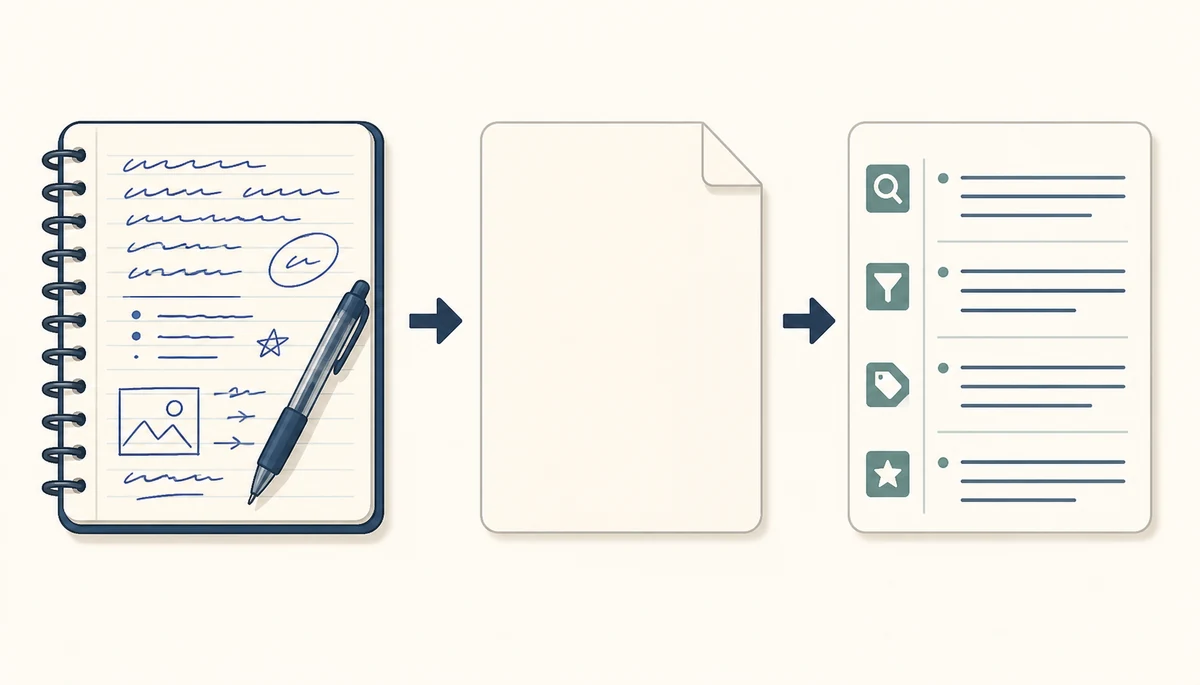
Treat the notebook, the PDF export and the recognized text as three versions with different jobs. This makes it easier to recover when OCR misreads a name, symbol or equation.
Save the editable source
Keep the .xopp notebook and any PDF background together in a clearly named project folder before exporting.
Export a working PDF
Review page size, contrast and annotation placement, then export a copy rather than replacing the source notebook.
Run OCR separately
Use a local or trusted OCR tool on the exported PDF. Choose the correct language and expect handwritten equations or unusual symbols to need review.
Check and preserve both
Compare the recognized text with the original ink, correct important passages and keep the .xopp file as the editable reference.
Before exporting
Improve OCR results without changing the source
Recognition quality starts with the page you export. Use enough pen contrast, leave space between lines, and avoid writing directly over a dense PDF background when the text will later be read by OCR. A clean test page is more useful than changing every page in a long notebook and discovering that the result is difficult to search.
Separate handwriting from diagrams when possible. OCR engines may interpret arrows, math marks, tables and decorative strokes as characters. If a page mixes notes and drawings, keep the original notebook for visual reference and treat the recognized text as a draft that needs proofreading rather than an authoritative transcription.

Privacy and accuracy
When should you avoid online handwriting OCR?
A notebook may contain student records, research notes, signatures, health information or work documents. Before uploading an exported PDF, check whether the OCR service stores files, trains on submitted content, sends data to another region or requires an account. For sensitive notes, prefer a local OCR workflow when the quality is acceptable, or keep the notebook as the only searchable-by-eye source.
OCR is also a transcription aid, not proof that every character was read correctly. Review names, numbers, equations, negations and short words carefully. If you need a reliable quote, compare it with the original ink or PDF page instead of assuming that a clean text layer is error-free.
What Xournal++ still does well
Use the native notebook for the parts OCR cannot preserve
Xournal++ remains useful when the meaning is carried by pen pressure, arrows, spacing, layers, diagrams or the relationship between an annotation and its PDF background. A text-only OCR output can make a notebook searchable, but it usually cannot reproduce the visual structure that made the original note useful.
For a dependable workflow, keep three clear filenames such as seminar-source.xopp, seminar-export.pdf and seminar-ocr.txt. Link the text back to the page or export when possible, and never delete the editable notebook simply because an OCR tool created a convenient text copy.
Frequently asked questions
Xournal++ handwriting recognition FAQ
Can Xournal++ convert handwriting to text?
Xournal++ is designed primarily for editable pen strokes and PDF annotation. For searchable typed text, export a PDF and use a separate OCR tool, then compare the result with the original .xopp notebook.
Is handwriting input the same as handwriting recognition?
No. Handwriting input records strokes, while handwriting-to-text recognition guesses characters and creates a text layer. They have different accuracy and editing requirements.
Can OCR read a PDF exported from Xournal++?
A separate OCR tool may be able to process the exported PDF, depending on its contrast, page layout and handwriting quality. Test one page first and proofread names, numbers and symbols.
Will OCR preserve Xournal++ layers?
Do not assume it will. OCR usually creates text for searching; it does not replace the editable .xopp layer structure. Keep the notebook and PDF export as separate source files.
Should I upload private Xournal++ notes to an online OCR service?
Only after checking the service's storage, training, account and regional data policies. For sensitive notes, a local OCR tool or a manual transcription workflow may be safer.